Install
Part 3 — Install the plugin
One DLL into one folder, then the first press of F5.
The hard part is behind you. This plugin ships as a single DLL with no dependencies beyond BepInEx itself, so installing it is one copy — and uninstalling it is one delete.
Extract the archive
Anywhere. Your Downloads folder is fine.
Right-click UngodlyStreetsOfRogueAI_v1_0_0.rar and extract it with 7-Zip, WinRAR or NanaZip.
Windows Explorer cannot open RAR files on its own, so if double-clicking does nothing useful, that
is why.
Inside you get two files:
UngodlyStreetsOfRogueAI.dll        the plugin — this is the only file that gets installed
README.md                            the technical write-up — keep it or bin it
If you skipped it earlier, this is a good moment to unblock the extracted files, for the same mark-of-the-web reason covered in Part 1:
Unblock-File .\UngodlyStreetsOfRogueAI.dllCopy the DLL into the plugins folder
One file, one destination, no subfolder needed.
Move UngodlyStreetsOfRogueAI.dll to:
...\Streets of Rogue\BepInEx\plugins\UngodlyStreetsOfRogueAI.dllWhen you are done, that folder holds exactly one item:
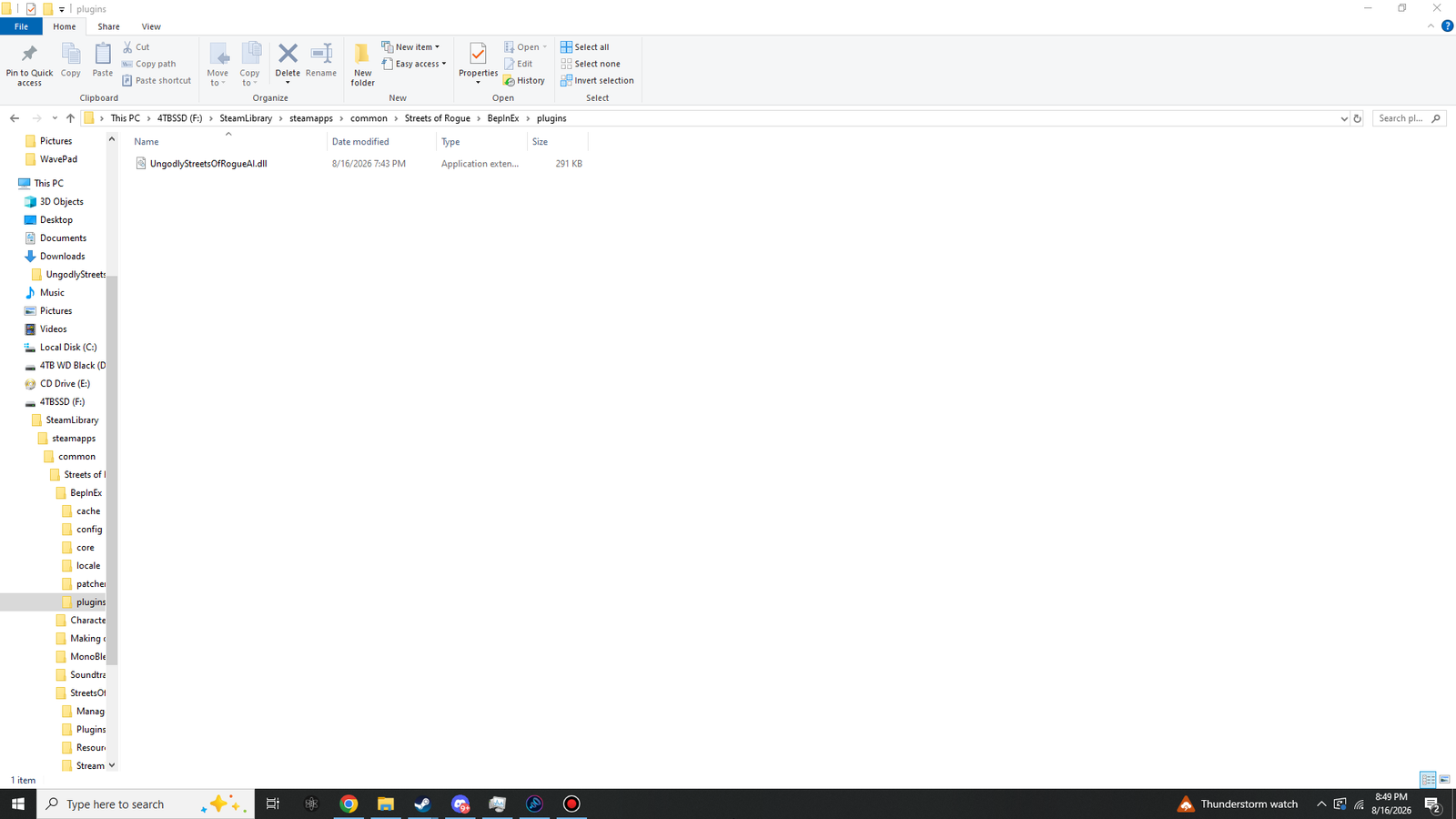 Click to enlarge · 1920 × 1080
BepInEx\plugins\ — one DLL, sitting loose in the folder.
BepInEx 5 scans plugins\ recursively, so
plugins\UngodlyStreetsOfRogueAI\UngodlyStreetsOfRogueAI.dll also works and is a tidy habit
once you run several mods. Loose in plugins\ is what the screenshots show and what the
rest of this guide assumes. Either is correct — what is not correct is
BepInEx\core\, BepInEx\patchers\, or the game folder root.
Launch and confirm it loaded
The log names the plugin. That is your proof.
Start the game and let it reach the main menu, then check BepInEx\LogOutput.log again:
[Info   :   BepInEx] 1 plugin to load
[Info   :   BepInEx] Loading [Ungodly Streets of Rogue AI 1.0.0]
[Message:   BepInEx] Chainloader startup complete
1 plugin to load and a Loading [...] line naming this mod means the plugin
is in memory and its hooks are applied. The plugin's own GUID, if you ever need it for a bug report,
is com.stixsworldhd.streetsofrogue.ungodlyai.
0 plugins to load?
The DLL is not where BepInEx is looking, or it is blocked. Check that the file is directly inside
BepInEx\plugins\, that its name has not become
UngodlyStreetsOfRogueAI.dll.txt through an over-helpful browser, and that you ran
Unblock-File on it. Troubleshooting covers each case.
Start a run and press F5
The panel only makes sense with a level loaded.
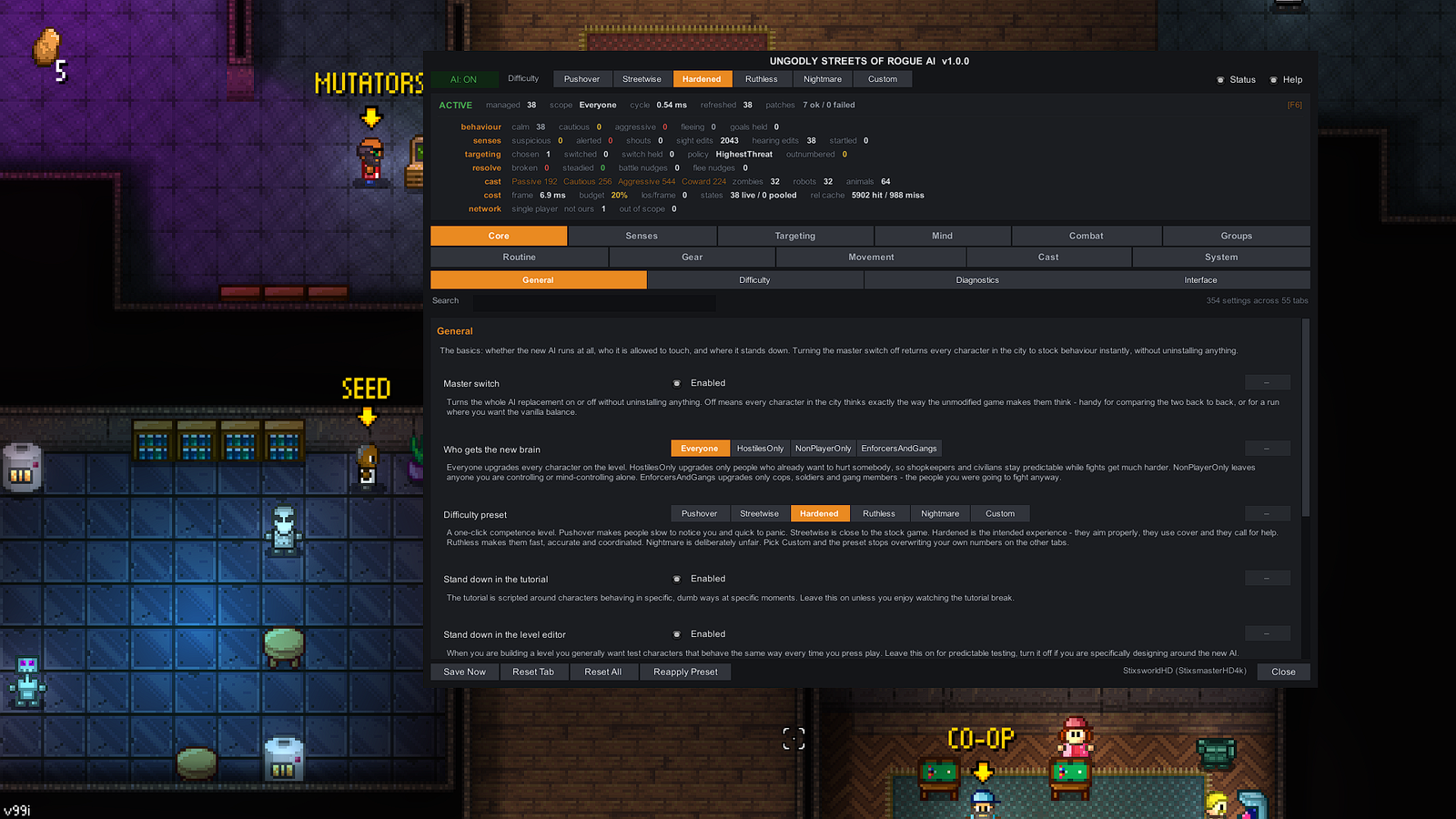
Start any run — a normal campaign start is ideal. Once you are in the city block, press F5. The settings panel opens over the game, the cursor appears, and your character stops responding to input while the window is up.
 Click to enlarge · 1920 × 1080
Two numbers are worth glancing at the first time, because together they mean everything is working:
patches |
7 ok / 0 failed. All 7 hooks bound to the game successfully. Anything other than 0 failed is worth reading the Diagnostics tab about. |
|---|---|
managed |
How many characters on this level are currently running the new brain. It should be a healthy fraction of the population and it will move as the level changes. |
The plugin checks its hotkey against the game's own key bindings on startup and quietly moves to a
free key if F5 is already taken — better than fighting the game for a
keypress. The key actually in use is always shown in the top-right of the status
readout; in the screenshot above it reads [F6], because F5 was spoken for on
that setup. Look there first, and see the panel guide for rebinding it.
Close the panel and check your cursor
Because this is what most in-game mod panels get wrong.
Press F5 again, or click Close. Control should return instantly and cleanly: your character moves, aiming works, and the pointer is mapped to the right part of the screen.
That is not luck. Closing pushes the game's own cached cursor choice back through the game's own code path, which is what re-establishes correct viewport mapping — the pointer is never warped by hand, because warping by hand is precisely what leaves it mapped to the wrong place. Input is blocked while the panel is open through the game's own "this player is typing" gate rather than by swallowing events, so if you were also frozen or mid-cutscene, control is not handed back early.
Everything from here is optional. Compare your folders against the folder check if you want certainty, read the panel guide to understand the status readout, or just pick a difficulty preset and play.
Not sure whether what you are seeing is the mod or the stock game? The footage of a working install lists the specific things to watch for.